
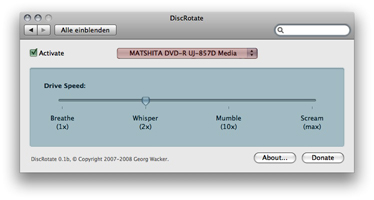
This is the PreferencePane for DiscRotate which controls the Daemon.
Simply select the Device in the popup menu, which you like to control. For most users, with one optical drive, selection is not necessary.
Settings of the Speed slider will instantly throttle the drive speed accordingly. User settings will be preserved for every optical drive.
By toggling the Activate button, DiscRotate will stop/resume it's throttling operations.
You should try the Activate button while playing a movie! Prepare, press it, wait a few seconds, hold your ears, press Activate again, smile and head over to the donation site.
screenshot
 (screenshot coloured for demonstration)